I did not open Adobe Podcast with a polished studio recording or a full episode ready to edit. I started with a short 38-second MP4 recorded indoors, mainly to see how quickly the platform could move from upload to cleanup and transcription.
The first impression was positive. Adobe Podcast does not drop users into a crowded editing timeline. Its homepage separates the main jobs into six clear tools, while Studio uses a simple Record, Edit and Export workflow. The platform is easy to understand, but my test also revealed an important limitation: much of the interesting video enhancement control sits behind Premium.
What Adobe Podcast Is Built For
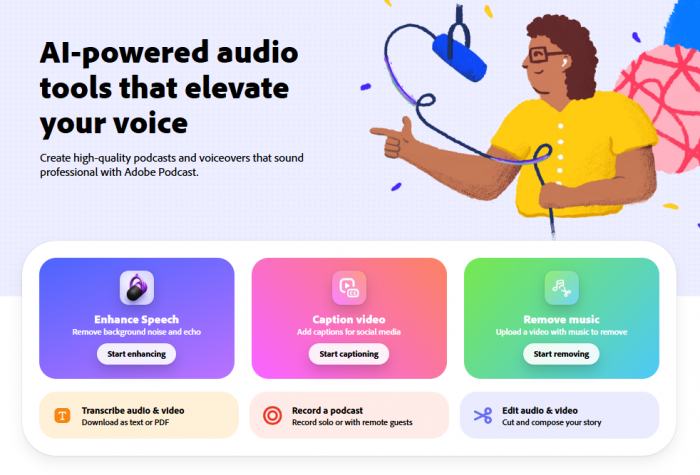
Adobe Podcast is a browser-based production tool for spoken audio and video. It is aimed at podcasters, interviewers, teachers, journalists, YouTubers and anyone working with voice-led content.
Its main purpose is to reduce the technical work involved in audio production. Instead of asking users to configure noise reduction, compression, equalisation and other effects, it presents direct actions such as enhancing speech, generating a transcript or removing a section through text.
It is not a replacement for Adobe Audition or Premiere Pro. Those applications provide detailed timelines and professional controls. Adobe Podcast is closer to a guided workspace for recording, cleaning and editing speech without requiring much audio experience.
The Six Tools I Found
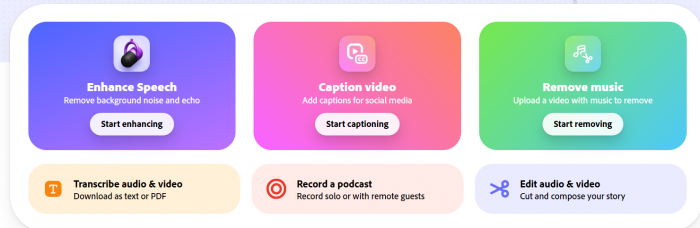
The interface currently presents six main tools. They cover most of the basic journey from recording to publishing.
| Tool | What it is designed to do |
| Enhance Speech | Cleans spoken audio by reducing background noise, echo and uneven vocal levels. |
| Caption Video | Generates subtitles for an uploaded video and prepares it for easier viewing without sound. |
| Remove Music | Attempts to separate speech from background music so the soundtrack can be lowered or removed. |
| Transcribe Audio and Video | Converts spoken content into editable text that can also be downloaded or reused elsewhere. |
| Record a Podcast | Records solo sessions or remote conversations directly through the browser. |
| Edit Audio and Video | Connects the transcript to the recording so unwanted sentences can be removed through text. |
I did not try to force a complete test of every feature. My main focus was the workflow around Enhance Speech and Studio because those were the most relevant to the short video I had.
I Started With Enhance Speech
Enhance Speech is the feature most people associate with Adobe Podcast, so it was the natural place to begin.
I uploaded my 38-second MP4 and waited for the file to appear in the interface. The process itself was simple. There were no export settings, format questions or technical sound options to configure before the upload.
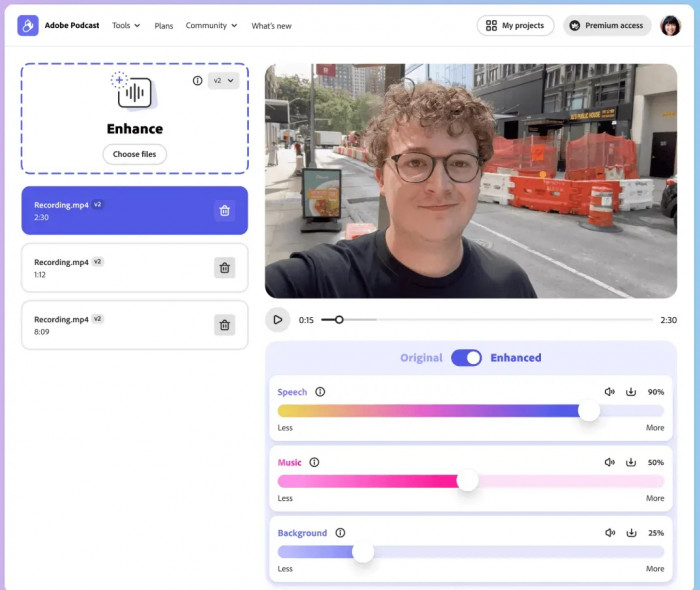
Once the file loaded, Adobe displayed a large video preview with a playback bar underneath. Below that was an Original and Enhanced switch, followed by three separate controls for Speech, Music and Background.
The layout made immediate sense.
The Speech slider appeared to control how strongly Adobe processed the voice. Music could be reduced separately, while Background seemed intended for ambience and general environmental sound.
This was more useful than a single automatic enhance button because not every recording needs the same treatment. A video may contain acceptable background ambience but overpowering music. Another file may have clear music and a voice buried beneath room noise.
Being able to treat those elements separately would make the result easier to control.
The Premium Limit Appeared Quickly
The problem was that I was using the free plan.
Adobe accepted the video and showed the enhancement interface, but the video controls I wanted to try were tied to Premium. I could see how the workflow was supposed to function, but I could not complete a proper before-and-after comparison using the uploaded MP4.
That changed the direction of the test. Instead of pretending I had fully tested the enhancement quality, I focused on what the interface revealed about the product. Adobe Podcast makes its paid controls easy to discover, but free users working with video hit the restriction early.
The free experience is more useful for audio files. Someone evaluating Enhance Speech without subscribing should begin with an MP3 or WAV recording rather than an MP4.
This is not necessarily an unreasonable restriction. Video processing requires more resources than audio cleanup. It does, however, mean that the homepage can make the tool appear more open than the actual free video workflow feels.
Why the Enhancement Controls Matter
Although I could not complete the video enhancement test, the three sliders explained how Adobe is approaching audio cleanup.
Speech enhancement is rarely a simple choice between clean and unclean. Strong processing may remove noise while also changing the speaker’s tone. A voice can become clearer but sound unnaturally smooth, compressed or slightly synthetic.
Separate controls offer a way to avoid that all-or-nothing result.
A user could increase speech clarity without completely muting the room. Music could be lowered without stripping away every other sound. Background ambience could remain when it adds context to an interview or outdoor recording.
This level of control is one of the strongest reasons to consider Premium. The value is not only longer file limits or additional exports. It is the ability to decide how much processing the recording actually needs.
Moving Into Studio
After reaching the restriction in Enhance Speech, I opened Adobe Podcast Studio and uploaded a short clip.
Studio felt more like a working area than a collection of separate utilities. At the top, the interface was divided into Record, Edit and Export. My file appeared in the Edit section as a large coloured track with a clearly visible Transcribe button.
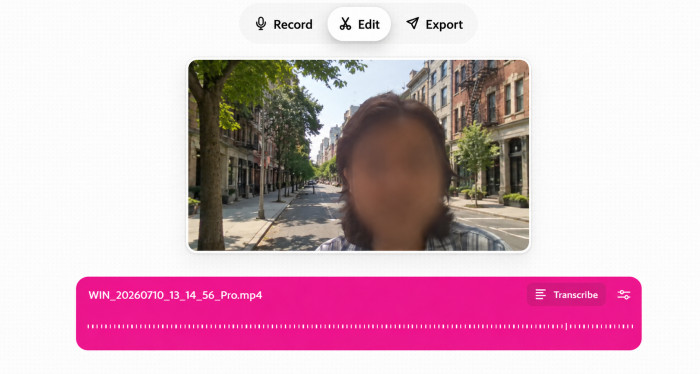
Nothing about the page felt confusing. I did not have to search through menus to find the next action.
That straightforward design is important because transcription is often the point at which beginner-focused editors become complicated. Some tools mix text, waveforms, tracks, captions and effects into one crowded screen. Adobe kept the first step obvious: upload the file, then transcribe it.
The experience also made the relationship between Adobe Podcast’s features clearer. Enhance Speech is useful for cleaning a file, while Studio is where that file becomes editable content.
Editing Through a Transcript
The main idea behind Studio is that spoken recordings can be edited like written documents.
Once a file is transcribed, the text becomes linked to the audio or video. Removing a sentence from the transcript also removes that part of the recording. This is particularly useful for interviews, tutorials and podcasts where edits are based on meaning rather than visual timing.
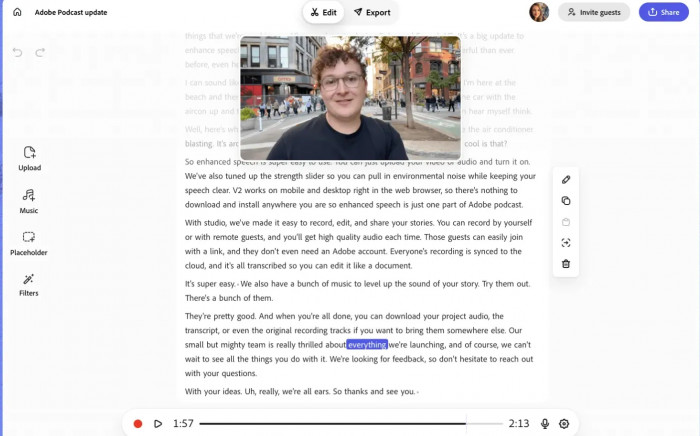
A repeated answer can be found by reading. An unnecessary introduction can be selected and removed. A long interview can be reviewed through its text before every minute of audio is replayed.
This approach is much easier for a beginner than navigating a waveform.
It still has limits. Text editing works best for complete sentences and larger sections. It is less precise when the problem involves a short breath, an awkward pause or a cut that needs to move by a fraction of a second.
Adobe Podcast simplifies structural editing. It does not replace the precision of a full timeline.
The Interface Was the Strongest Part
The most convincing part of my short experience was not a dramatic AI result. It was the way the platform organised the work.
Adobe Podcast keeps each task focused. Enhance Speech begins with an upload. Studio begins with recording or importing. Transcription is presented as a clear next step rather than hidden inside an editing menu.
That simplicity makes the platform approachable for someone who knows a recording sounds poor but does not understand professional audio terminology.
A few parts of the experience worked particularly well:
● The upload process required almost no setup, so I could reach the actual workspace quickly.
● The Original and Enhanced switch made the intended comparison easy to understand, even though video processing required Premium.
● The Speech, Music and Background controls showed a more thoughtful approach than one fixed enhancement setting.
● Studio made the next step obvious by placing the Transcribe option directly on the uploaded file.
● The Record, Edit and Export structure gave the platform a natural beginning, middle and end.
The interface reduces hesitation. Users do not need to know which professional effect should come first before they can begin.
Where the Experience Felt Incomplete
The biggest weakness was the gap between seeing the controls and being able to use them.
The free plan allowed me to upload the MP4 and inspect the interface, but it did not let me meaningfully judge the video enhancement output. That made the test feel more like a preview than a complete free workflow.
Adobe Podcast also relies heavily on automation. That is convenient, but it means the user has fewer options when the result is not right.
A transcript may misread a product name. Enhancement may make the voice too polished. Removing a sentence may leave an unnatural pause. Captions may need punctuation corrections.
The platform saves time, but it does not remove the need to review the output carefully.
Enhance Speech Is Still the Main Attraction
Even without completing the paid video test, it was easy to understand why Enhance Speech remains the feature that draws people to Adobe Podcast.
Cleaning dialogue manually can involve several separate steps. Background noise may need one tool, room echo another and uneven voice levels a third.
Adobe attempts to combine those jobs into one process.
That can be extremely useful for recordings made with laptop microphones, phones, webcams or in untreated rooms. It can also help with remote interviews where one participant had a weaker setup than everyone else.
The tool is less likely to rescue audio that was never properly captured. Loud clipping, severe distortion, overlapping speakers or music covering the voice can limit what any automatic system can recover.
Adobe Podcast is best used on flawed but understandable speech, not completely damaged recordings.
Recording and Remote Interviews
The Record a Podcast tool is designed for solo sessions and remote conversations.
A host can begin a recording in the browser and invite guests without asking them to install a full editing program. Separate participant tracks make later editing easier because one person’s volume or background noise can be adjusted without changing everyone else.
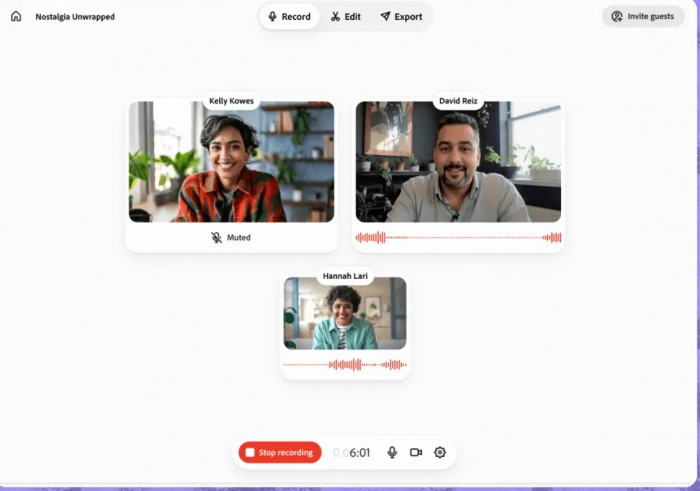
This is useful for interview podcasts, online discussions and video conversations.
The browser-based approach also introduces practical concerns. Recording, uploading and synchronising depend on the device and internet connection. Important sessions should always be backed up, and users should avoid relying on a single cloud project as the only copy.
Captions, Music Removal and Transcription
The other tools support the same speech-focused workflow.
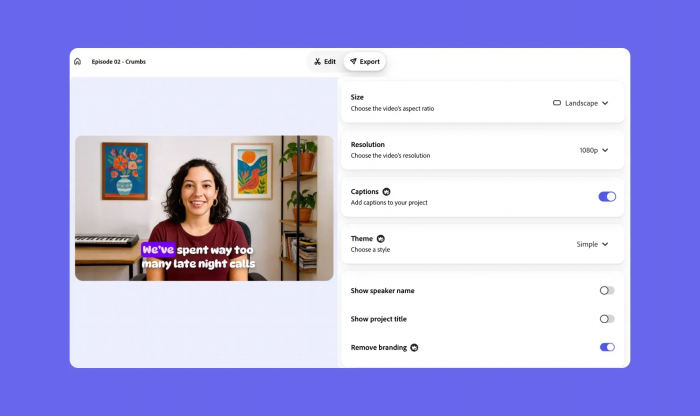
Caption Video is useful for turning a talking-head clip into content that remains understandable without sound. It may suit tutorials, interview extracts and social videos, although automatic captions still need checking.
Remove Music is intended for files where speech and a soundtrack have already been mixed together. It can help lower or remove the music, but clean separation is not guaranteed. Loud music and dialogue often overlap in ways that leave artefacts after processing.
Transcription is useful beyond editing. A finished transcript can become podcast notes, a searchable interview record, a caption source or the basis of an article. Accuracy will depend on the recording quality, speaker clarity and terminology used.
These features are not unrelated extras. They all support the same goal of moving spoken content from raw recording to something easier to edit and publish.
Free Plan or Premium?
The free plan is useful for short audio workflows, but the video experience is more restricted.
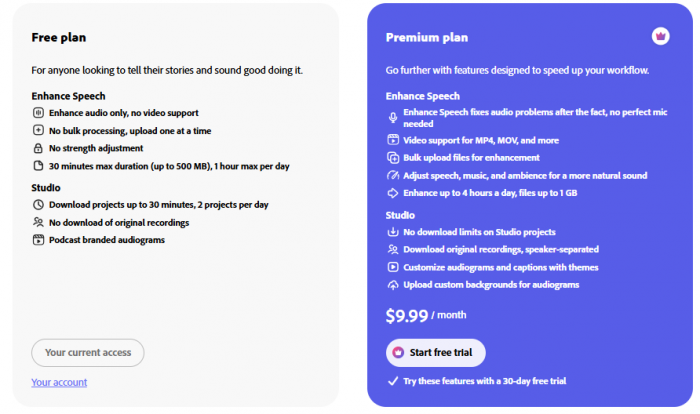
Someone working mainly with audio can still explore speech enhancement, transcription and limited Studio editing. Premium becomes more relevant for video files, longer projects, additional downloads and control over Speech, Music and Background.
For occasional voice cleanup, paying every month may not make sense. A user who records interviews, tutorials or podcasts regularly is more likely to benefit from the broader workflow.
The most persuasive paid feature is the added control. Automatic enhancement is convenient, but adjustable processing is more useful when voice quality matters.
Privacy Is Worth Considering
Adobe Podcast is cloud based, so uploaded recordings are processed online rather than remaining entirely on the user’s computer.
That may not matter for a public tutorial or finished podcast episode. It deserves more thought when the file contains confidential interviews, legal conversations, private client details or unreleased business information.
Users handling sensitive material should review the current Adobe terms before uploading it. Keeping an original file stored locally is also important, particularly while Studio remains a browser-based product.
Who Adobe Podcast Suits
Adobe Podcast makes the most sense for people whose work is centred on speech.
Beginner podcasters, teachers, coaches, journalists, interviewers and YouTubers may find it useful because it reduces the need to learn professional audio software before producing something listenable.
It is especially practical for users who need to:
● Clean a short voice recording made with an ordinary microphone.
● Turn an interview into searchable text without using a separate transcription service.
● Remove repeated sections by editing the words rather than a waveform.
● Record remote guests without building a complicated technical setup.
● Create basic captioned clips from spoken content.
Professional audio engineers, music producers and experienced editors may find it too limited. Adobe Podcast is designed to remove complexity, while advanced users often need direct control over that complexity.
Final Verdict
My experience with Adobe Podcast was brief but revealing.
The platform was easy to enter, easy to understand and clearly organised around the way spoken content is produced. I uploaded a short MP4, explored the Enhance Speech workspace and then moved the same file into Studio for transcription.
The interface never felt difficult. Adobe Podcast does a good job of showing users where to begin and what should happen next. The main frustration was the free video limit. I could see the Original and Enhanced comparison and the Speech, Music and Background controls, but I could not complete a meaningful video enhancement test without Premium.
That restriction prevented me from judging the final cleaned output, but it did not hide the platform’s main strength. Adobe Podcast takes several technical jobs and presents them as simple, focused actions.
It is best suited to people who want help with speech cleanup, transcription and basic editing rather than complete professional control. The free plan is a reasonable starting point for audio. Video creators will need to decide much sooner whether the paid controls are worth it.
Adobe Podcast does not replace a full audio editor, but it makes the first stages of spoken-content production far less intimidating. For many creators, that may be enough to make it useful.