I looked at AutoDraft AI from the perspective of a creator who wants to turn story ideas into cartoon-style visuals without using several different tools. The main question is not only whether it can generate good-looking images, but whether it can help with a real workflow: characters, backgrounds, voiceover, lip sync, editing and export.
AutoDraft AI is clearly built for YouTube creators, kids’ content makers, educators, comic creators and small teams that need faster visual storytelling. This review looks at how useful it feels in practice, where it saves time, where the output still needs checking, and whether the credit-based pricing makes sense for regular creator work.
Quick Verdict
| Category | Review |
| Best for | Cartoon stories, YouTube animation, kids’ videos, explainers, comics, webtoon-style visuals |
| Not best for | Advanced 3D animation, cinematic realism, professional frame-by-frame control |
| Free plan | Useful for basic testing, not enough for regular production |
| Starting price | Public sources commonly list paid plans from around $10/month |
| Main strength | Combines characters, backgrounds, voices, animation tools, and editing in one workflow |
| Main concern | Credit usage, consistency, limited public reviews, and output polishing |
| Overall view | Useful for creators, but not a one-click replacement for professional animation software |
AutoDraft AI is worth considering if your goal is to create visual stories faster. It is less convincing if you need studio-grade animation, full production control, or highly realistic AI video.
What AutoDraft AI Actually Does
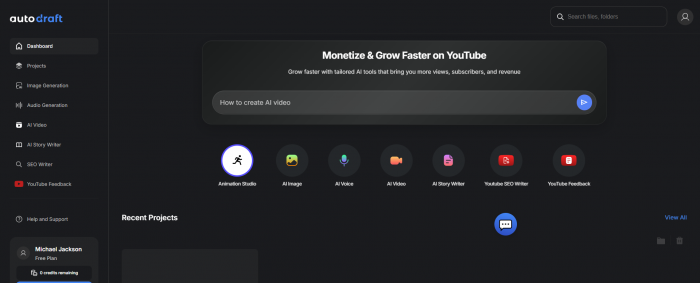
AutoDraft AI is not just a basic image generator. It is closer to a creative production platform for cartoon-style storytelling. The tool helps users generate characters, backgrounds, comics, webtoon-style visuals, animation assets, image edits, voiceovers, and simple animated scenes.
Its core promise is speed. A creator who normally needs separate tools for character design, background art, voice generation, image cleanup, and video editing can manage more of the process inside one platform. That makes AutoDraft AI especially relevant for people making YouTube cartoon stories, moral stories, nursery rhymes, educational explainers, and short animated content.
The product also leans heavily into creator monetization. AutoDraft promotes itself around YouTube-style animation and highlights creator channels that have gained large view counts or monetized content. That does not guarantee the same results for every user, but it shows the audience AutoDraft is trying to serve: creators who want repeatable visual content, not just one-off AI art.
Why AutoDraft Feels Different
Many AI tools can generate a single image. AutoDraft AI is more interesting because it focuses on the full creative chain around storytelling.
A normal AI image generator may help you create a character or background, but you still need other tools to build a scene, create voiceover, manage expressions, edit visuals, and prepare the output. AutoDraft tries to reduce that gap by combining several creative steps.
Its practical value depends on three things:
1. Whether the characters stay consistent across scenes.
2. Whether the output is usable without heavy editing.
3. Whether the credit cost makes sense for regular production.
That is why AutoDraft AI should not be judged only by its feature list. It should be judged by how well it supports an actual creator workflow.
AutoDraft AI Workflow
The AutoDraft workflow usually starts with a prompt, script, storyboard idea, sketch, or reference. From there, users can generate a character, create a matching background, build a scene, add voiceover or lip sync, apply basic motion, edit the visual, and export the final asset or video.
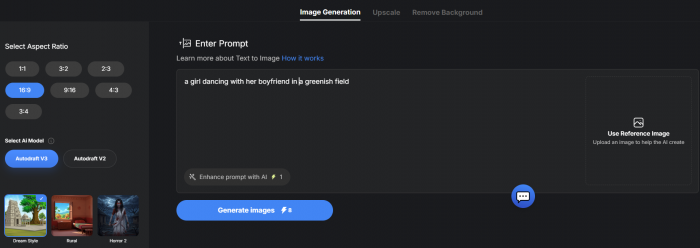
The workflow is simple at the entry level, but it becomes more serious when you try to build a full story. A single image is easy to generate. A complete cartoon video needs planning, repeated characters, matching backgrounds, clean voice timing, and enough credits for revisions.
A practical AutoDraft AI workflow may look like this:
1. Write a short story or scene script.
2. Create the main character with clear details.
3. Generate matching backgrounds for each scene.
4. Add poses, props, expressions, or actions.
5. Use voiceover and lip sync if the video needs dialogue.
6. Edit the scene using background removal, object removal, inpainting, or upscaling.
7. Export the result and check whether it needs external editing.
This is where AutoDraft becomes useful. It gives non-animators a structured way to move from idea to visual scene. But it still requires creative direction. The user needs to decide what the character looks like, how scenes connect, what style the story uses, and whether the final output is clean enough to publish.
Features That Actually Matter
AutoDraft AI has many tools, but not all features matter equally. For most users, the important features are the ones that help create repeatable visual content.
| Feature Area | What It Helps With | Why It Matters |
| AI character generation | Creating cartoon or story characters | Important for YouTube series, comics, and recurring stories |
| AI background generation | Creating scene settings | Saves time for classrooms, forests, rooms, streets, fantasy scenes, and story worlds |
| Text-to-image | Turning prompts into visuals | Useful for quick concept creation |
| Image-to-image | Reworking an existing image | Helpful when refining a character or scene |
| Sketch-to-image | Turning rough drawings into polished visuals | Useful for creators who already have an idea but lack design skills |
| Inpainting and object removal | Fixing parts of an image | Important because AI outputs often need cleanup |
| Creative upscaling | Improving resolution and detail | Useful before exporting or publishing |
| Voiceover and lip sync | Creating talking characters | Useful for stories, rhymes, explainers, and dialogue scenes |
| Editing tools | Cleaning and arranging assets | Reduces dependence on external editing software |
The strongest part of AutoDraft AI is not one individual tool. It is the combination. A creator can move from character to scene to voice to edit inside one environment, which is more practical than using five separate apps for one short video.
Output Quality and Consistency
AutoDraft AI appears strongest in cartoon, comic, anime, semi-realistic, and storybook-style visuals. These formats fit the tool better than cinematic realism because small imperfections are easier to hide in stylized content.
For users, the biggest output question is not whether AutoDraft can create a good-looking image. The real question is whether it can support a complete story. A YouTube cartoon creator does not need one beautiful character image. They need the same character to remain recognizable across multiple scenes, outfits, expressions, and camera angles.
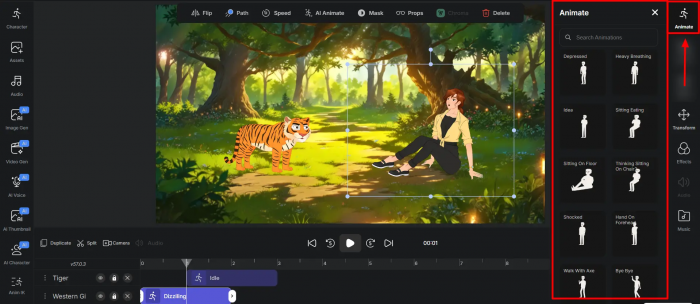
Character consistency should be judged through details such as:
● Face shape
● Outfit and color
● Hair or head design
● Body proportions
● Art style
● Expression control
● Scene-to-scene continuity
This matters because a character that changes too much from one scene to another can break the story. AutoDraft’s value is much higher if users can keep the same character stable across a full video or series.
Background quality is also important. A strong background should match the story mood, leave enough space for the character, and avoid messy objects that distract from the scene. AutoDraft can be useful for generating story settings quickly, but creators should still review each background before using it in a final video.
Voiceover, Lip Sync and Editing
Voiceover and lip sync are important because AutoDraft is aimed at animated storytelling. A silent character image is useful, but a talking character can become part of a real video.
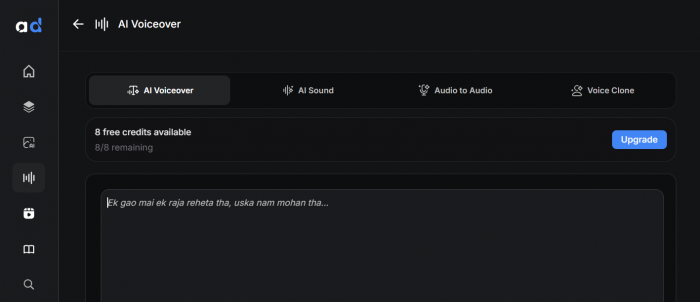
For kids’ stories, moral stories, rhymes, classroom explainers, and short cartoon clips, voice tools can save a lot of time. Creators do not need to record every line manually or hire voice artists for early drafts. However, voice quality still needs checking. A voice may be clear but still sound flat, robotic, or mismatched with the character.
Lip sync should also be judged practically. It does not need to be perfect for every casual cartoon story, but it should be close enough that viewers are not distracted. If the character’s mouth movement feels disconnected from the audio, the scene may need extra editing.
The editing tools are useful because AI-generated visuals are rarely perfect on the first try. Background removal, object removal, inpainting, and upscaling help clean the result before export. This is where AutoDraft can save time for creators who do not want to move every asset into Photoshop, Canva, or another editing tool.
Pricing and Credit Usage
AutoDraft AI has a free option, while public pricing references commonly show paid plans starting around $10 per month. AutoDraft’s own 2026 blog lists a Starter plan with 20 free credits, a Base plan at $8.82 per month with 1,000 credits, and a Pro plan at $35 per month with 4,000 credits. But pricing may change as per your region or new update, so always check the official pricing before using it.
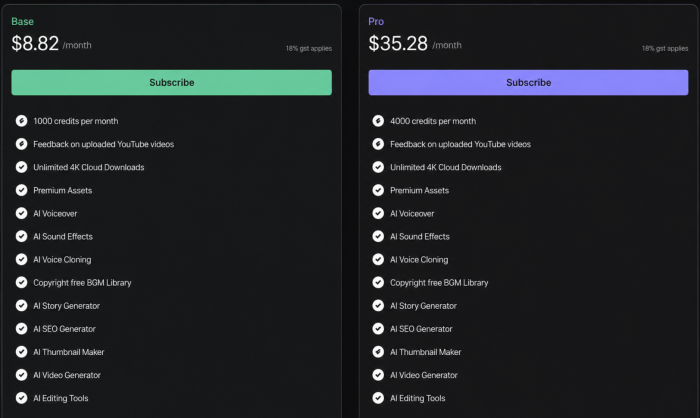
The important point is that AutoDraft uses credits. That means the monthly price alone does not show the full cost. The real cost depends on how many characters, backgrounds, voiceovers, scene generations, edits, regenerations, and exports a creator needs.
| Plan Area | What Users Should Check |
| Free plan | Whether the credits are enough to test real scenes, not just one sample |
| Base plan | Whether 1,000 credits can support the number of videos needed per month |
| Pro plan | Whether 4,000 credits are enough for regular publishing |
| Credit usage | Which actions consume credits and how quickly credits run out |
| Export limits | Whether final downloads are limited by plan |
| Watermark rules | Whether free or lower plans add branding |
| Commercial use | Whether the selected plan allows monetized or client work |
This is one of the most important parts of the review. A tool can look affordable at $10 per month, but if a creator needs many retries for each scene, the real cost per finished video may be higher than expected.
Before paying, users should create a simple production estimate. For example, a five-scene cartoon video may need one main character, five backgrounds, several pose changes, voiceover, lip sync, edits, and exports. If each step uses credits, the cost should be calculated per finished video, not only per month.
Real User Feedback
Public user feedback for AutoDraft AI is positive but limited. G2 reviews mention benefits such as easier character animation, custom backgrounds, multiple art styles, custom model training, image continuity, background erasing, replacing, and upscaling. Users also mention that AutoDraft can reduce the time and cost needed to create animation-style visuals.
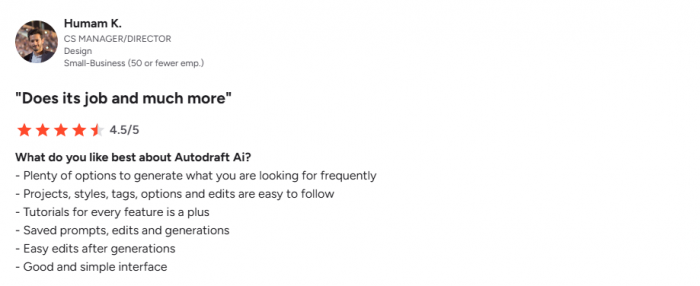
However, the limited number of public reviews means buyers should be careful. A small review sample can show useful signals, but it is not enough to prove that every creator will get strong results. Some feedback also points to practical friction, such as longer first-use loading time, generation delays, and the need for better prompt examples while writing detailed instructions.
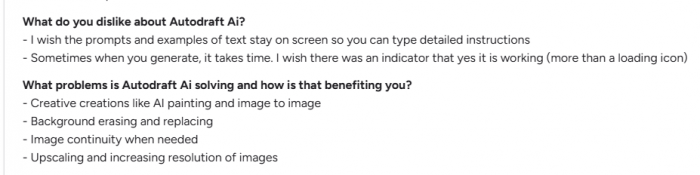
The fair reading is this: AutoDraft AI has promising feedback from early users, especially around ease of use and animation support, but it still needs a larger review base before it can be treated as a fully proven creator platform.
Commercial Use and Copyright
Commercial use matters because AutoDraft AI is promoted heavily toward YouTube creators. Many users will want to publish videos, monetize channels, create brand assets, or use outputs in client work.
Before using AutoDraft AI commercially, creators should check the latest terms around generated content, YouTube uploads, copyright claims, custom models, and uploaded assets. This is especially important when using brand logos, client references, private sketches, custom characters, or voices.
For casual personal projects, the risk may be lower. For agencies, freelancers, teachers, and businesses, the safer approach is to check the rights before publishing or selling anything made with the tool.
Privacy and Uploaded Assets
AutoDraft AI supports workflows that may involve uploaded sketches, image references, character designs, and custom assets. That creates a privacy question.
Users should be careful before uploading confidential material. This includes unreleased character designs, client-owned artwork, private faces, school-related material, brand files, or paid creative assets. Even if the tool is useful, creators should understand how uploaded data may be handled before using it in professional projects.
A good rule is simple: use AutoDraft freely for low-risk creative work, but be more cautious with private, commercial, or client-owned material.
Strengths and Limitations
| Strengths | Limitations |
| Strong fit for cartoon stories and YouTube-style animation | Not a replacement for professional animation software |
| Combines characters, backgrounds, voice, lip sync, and editing | Credit-based pricing can make real cost hard to predict |
| Useful for beginners and non-animators | Character consistency still needs careful review |
| Good for kids’ videos, explainers, and webtoon-style content | Public review volume is still limited |
| Includes image cleanup tools like object removal and upscaling | Complex projects may still need external editing |
| Faster than traditional animation for simple content | Not ideal for cinematic realism or advanced 3D work |
AutoDraft AI’s strengths are clear when the goal is fast visual storytelling. Its weaknesses appear when users expect professional-level animation control or perfect output without editing.
Who Should Use AutoDraft AI?
AutoDraft AI makes the most sense for creators who want to make cartoon-style visuals, story scenes, animated explainers, and character-based content without learning traditional animation tools.
YouTube cartoon creators are the clearest target audience. If someone is making moral stories, nursery rhymes, kids’ videos, horror story animations, or short storytelling content, AutoDraft AI can help reduce the early production workload. Instead of creating characters, backgrounds, voices, and scene assets separately, creators can handle more of the process in one place.
Teachers and educators may also find it useful for classroom visuals, lesson explainers, and child-friendly storytelling. The tool can turn plain lesson ideas into more visual material, although final outputs should still be reviewed before use.
Comic creators, webtoon artists, beginner animators, and small content teams may also benefit from AutoDraft AI as a drafting and production support tool. It is especially useful when the goal is speed and consistency, not perfect studio animation.
AutoDraft AI is less suitable for professional animators who need frame-by-frame control, advanced 3D motion, complex camera work, or cinematic polish. It is also not the best choice for users who only need realistic one-off images, because dedicated image generators may deliver stronger results for that use case.
Best AutoDraft AI Alternatives
| Tool | Best For | Why Choose It Over AutoDraft AI? |
| Animaker | Template-based animation | Better for ready-made animated videos and simple explainers |
| Vyond | Business animation | Stronger for corporate training, HR videos, and professional explainers |
| Canva | Simple social videos | Easier for quick designs, thumbnails, and short social content |
| Runway | AI video generation | Better for cinematic AI video and creative video effects |
| Leonardo AI | Concept art and assets | Stronger for detailed standalone images and character visuals |
| Midjourney | Premium AI artwork | Better for polished, stylized images and visual concepts |
| Krikey AI | 3D character animation | More useful for 3D avatars, motion, and character movement |
| Adobe After Effects | Professional animation | Best for advanced motion graphics and full editing control |
AutoDraft AI is different because it focuses on cartoon story creation. It is most useful when creators need characters, backgrounds, voices, and simple animation tools in one workflow.
My Personal AutoDraft AI Scorecard
| Review Area | Score | Quick Take |
|---|---|---|
| Ease of use | 8.0 / 10 | Simple enough for beginners and non-animators. |
| Storytelling workflow | 8.2 / 10 | Strong because it combines characters, backgrounds, voice, lip sync and editing. |
| Output quality | 7.2 / 10 | Best for cartoon, comic and storybook-style visuals, not cinematic realism. |
| Character consistency | 6.8 / 10 | Useful, but still needs checking across scenes. |
| Pricing and credits | 6.5 / 10 | Affordable at first, but real cost depends on retries and exports. |
| Overall value | 7.3 / 10 | A practical creator tool, but not a full animation-studio replacement. |
Final Verdict
AutoDraft AI is worth testing if you want to create cartoon stories, kids’ videos, educational scenes, comics or YouTube-style character content faster. Its biggest strength is the combined workflow. You can create characters, backgrounds, voiceovers, lip sync and basic edits without constantly moving between different tools.
That said, it is not a one-click replacement for professional animation software. Character consistency, voice quality, lip sync, background details and credit usage still need careful checking, especially if you want to publish regularly.
The best way to judge AutoDraft AI is to create one short sample project before paying. Build a small scene, test the same character across multiple visuals, add voiceover, export the result and check how many credits it used. If the quality and cost fit your content workflow, AutoDraft AI can be a useful shortcut. If you need cinematic realism or advanced animation control, it works better as a support tool than a full production system.