YouTube video creation is no longer just about recording and editing. A serious creator now has to manage ideas, scripts, voiceovers, visuals, captions, thumbnails, Shorts, titles, and search demand. That is why the best AI tool is not always the most advanced video generator. It is the tool that fits the exact stage where your workflow slows down.
This guide breaks down the best AI tools for YouTube video creation by real use case. Some tools help you turn scripts into videos. Some help you edit faster. Some are better for AI avatars, Shorts, thumbnails, or YouTube SEO.
Quick Comparison of the Best AI Tools for YouTube Video Creation
| Tool | Best Use Case | Starting Price |
| InVideo AI | Turning prompts into full video drafts | From $17/month, billed yearly |
| Pictory | Script-to-video and faceless content | From $25/month, billed yearly |
| HeyGen | AI presenter and talking-head videos | From $29/month |
| Synthesia | Professional avatar and training videos | From $18/month |
| Descript | Editing recorded videos through text | From $16/month, billed yearly |
| CapCut | YouTube Shorts and fast social editing | Pricing varies by region and platform |
| Canva | Thumbnails, banners, and simple video assets | Canva Pro pricing varies by region |
| vidIQ | YouTube SEO, topic research, and growth | Paid pricing should be checked live before publishing |
1. InVideo AI: Best for Turning Prompts Into Full YouTube Video Drafts
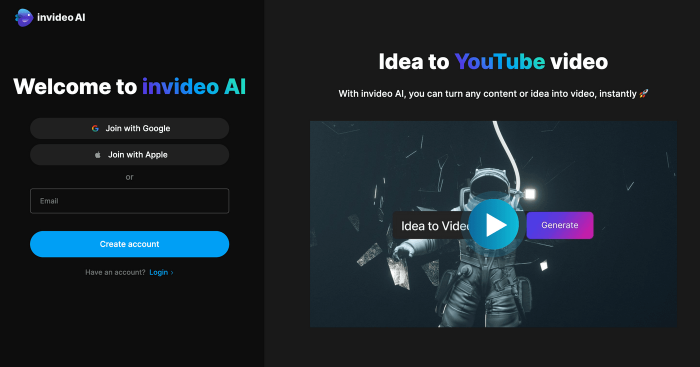
InVideo AI is useful for creators who already have a topic, prompt, or script but do not want to build the first video manually from scratch. It can generate a rough video structure with scenes, stock footage, voiceover, subtitles generation, and basic pacing, which makes it helpful for faceless YouTube channels and explainer-style content.
It is not a replacement for careful editing, but it can save time during the first-draft stage. Instead of opening a blank timeline, creators can start with an AI-built version and then replace weak visuals, adjust the voiceover, improve the pacing, and make the final video feel more original.
| Pros | Cons |
| Turns prompts or scripts into video drafts quickly | Stock footage can feel generic without manual editing |
| Useful for faceless YouTube channels | Free exports may include limits or branding |
| Adds voiceover, subtitles, scenes, and media in one workflow | Not ideal for frame-level editing control |
| Beginner-friendly compared with traditional video editing software | Heavy creators may need a paid plan quickly |
How it helps YouTube creators:
InVideo AI helps creators move from idea to first draft faster. It works well for list videos, educational explainers, news-style summaries, tutorial content, and faceless channels that rely on narration, captions, and stock visuals.
Pricing: InVideo AI has a free plan. Paid plans start from $17/month when billed yearly.
Best for: Faceless YouTube creators who want to turn ideas or scripts into video drafts quickly.
2. Pictory: Best for Script-to-Video and Educational YouTube Channels

Pictory is a strong tool for creators who work from written material. If you already have a blog post, article, script, webinar transcript, or long written outline, Pictory can help turn that content into a structured video with visuals, captions, and narration.
It is especially useful for educational YouTube channels because the workflow starts with information rather than cinematic visuals. The tool is not designed for highly customized filmmaking, but it can make text-heavy content easier to turn into watchable videos.
| Pros | Cons |
| Good for turning scripts, blogs, and articles into videos | Visual choices may need manual correction |
| Useful for faceless educational content | Not ideal for cinematic or highly original video styles |
| Saves time on captions and scene building | The output can feel template-driven if not edited |
| Works well for repurposing existing written content | Free access is mainly trial-based |
How it helps YouTube creators:
Pictory helps YouTube creators reuse content they already have. A blog post can become an explainer video, a webinar can become a shorter educational upload, and a written script can become a faceless video draft without starting from zero.
Pricing: Pictory offers a free trial. Paid plans start from $25/month when billed yearly.
Best for: Educational channels, faceless explainers, blog-to-video workflows, and creators who already write strong scripts.
3. HeyGen: Best for AI Presenter Videos
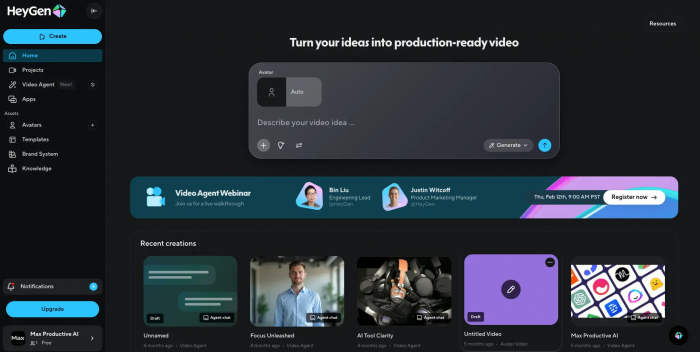
HeyGen is built for creators who want presenter-style videos without recording themselves on camera every time. It can create AI avatar videos from text, making it useful for explainers, product walkthroughs, sales videos, course content, and multilingual presentations.
For YouTube, HeyGen works best when the video needs a face, a presenter, or a professional talking-head format. It is less useful for cinematic storytelling or fast Shorts editing, but it is much stronger when the goal is clean presenter-led content.
| Pros | Cons |
| Creates avatar videos from scripts | More expensive than basic editing tools |
| Useful for presenter-style YouTube videos | Avatar content can feel repetitive without strong scripting |
| Supports business, education, and product explainers | Not ideal for cinematic or vlog-style content |
| Good for creators who do not want to appear on camera | Free plan has limited video generation |
How it helps YouTube creators:
HeyGen helps creators produce talking-head content without arranging cameras, lighting, presenters, or recording sessions. It is useful for product explainers, software tutorials, educational channels, business updates, and multilingual YouTube content.
Pricing: HeyGen has a free plan. Paid plans start from $29/month.
Best for: YouTube creators who want AI presenter videos, product explainers, and professional talking-head content.
4. Synthesia: Best for Professional Avatar and Training Videos

Synthesia is one of the strongest AI video tools for professional avatar-based content. It is widely used for training, onboarding, internal communication, product education, and structured explainers where a polished presenter format matters.
For YouTube creators, Synthesia is not the most casual or playful option. Its strength is consistency. If your channel publishes professional lessons, business explainers, software walkthroughs, or training-style content, Synthesia can give the videos a cleaner and more repeatable format.
| Pros | Cons |
| Strong avatar video quality for professional content | Less suitable for casual creator-style videos |
| Good for training, tutorials, and explainers | Can feel too corporate for entertainment channels |
| Supports structured script-based production | Advanced features may require higher plans |
| Useful for teams and repeatable video workflows | Not focused on Shorts or fast social edits |
How it helps YouTube creators:
Synthesia helps creators produce polished educational and business videos without filming a human presenter. It is useful for channels that publish tutorials, training videos, compliance content, software lessons, or professional explainers.
Pricing: Synthesia has a free plan. Paid plans now start from $18/month.
Best for: Professional YouTube channels, training content, business explainers, and avatar-led educational videos.
5. Descript: Best for Editing Recorded YouTube Videos Through Text
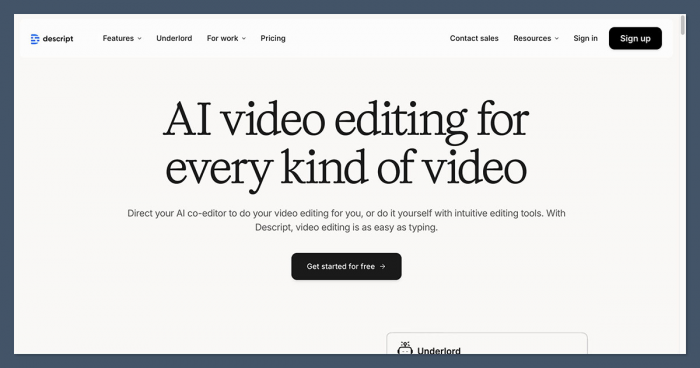
Descript is different from most AI video generators because it is strongest after you already have recorded material. It lets creators edit video and audio by editing the transcript, which makes it especially useful for podcasts editing, interviews, tutorials, talking-head videos, and screen recordings.
Instead of cutting clips only on a timeline, creators can remove filler words, clean audio, create clips, add captions, and reshape recorded content more quickly. For YouTubers who record their own voice or face, Descript can become the main editing workspace.
| Pros | Cons |
| Edits video and audio through text | Not a full AI video generator from scratch |
| Useful for podcasts, interviews, and tutorials | Free plan has limited media hours and AI credits |
| Strong tools for captions, filler word removal, and audio cleanup | Some advanced tools are locked behind paid plans |
| Good for repurposing long videos into shorter clips | Timeline control may feel different for traditional editors |
How it helps YouTube creators:
Descript helps creators clean, cut, and repurpose recorded videos faster. A long interview can become a tighter YouTube upload, a podcast can become clips, and a tutorial can be edited by removing words from the transcript instead of manually cutting every pause.
Pricing: Descript has a free plan. Paid plans start from $16/month when billed yearly.
Best for: YouTubers who record podcasts, interviews, tutorials, screen recordings, and talking-head videos.
6. CapCut: Best for YouTube Shorts and Fast-Paced Editing
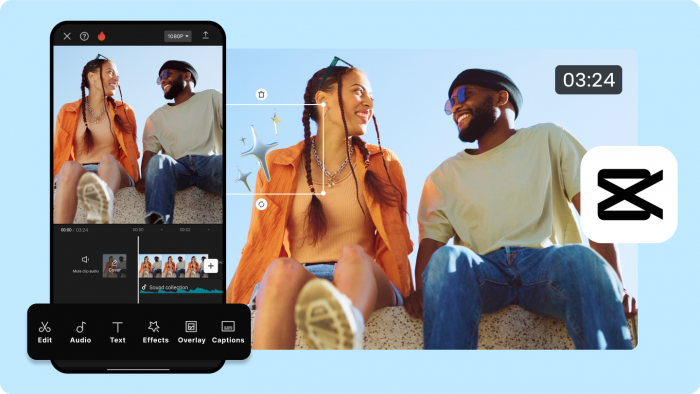
CapCut is one of the most practical tools for YouTube Shorts creators. It combines a simple editing interface with captions, effects, transitions, templates, background removal, music, and mobile-first editing tools that are useful for short-form content.
It is not just for TikTok-style videos. Many YouTube creators use CapCut because Shorts need a different rhythm from long-form videos. Quick cuts, readable captions, hooks, zooms, overlays, and mobile-friendly pacing matter more than traditional editing complexity.
| Pros | Cons |
| Excellent for YouTube Shorts and mobile-first editing | Pricing can vary by region and platform |
| Strong auto-caption and effects workflow | Some popular effects and AI features are paid |
| Easy for beginners and fast editors | Not ideal for complex long-form editing projects |
| Works well on mobile and desktop | Free features can change over time |
How it helps YouTube creators:
CapCut helps creators produce Shorts quickly. It is useful for adding captions, trimming clips, inserting quick effects, resizing videos, creating hooks, and turning raw phone footage into short, publishable content for YouTube Shorts.
Pricing: CapCut has a free plan. Paid pricing varies by region, device, and checkout platform, so the final price should be checked inside the app or official checkout page.
Best for: YouTube Shorts creators, mobile video editors, reaction clips, quick tutorials, and fast social-style edits.
7. Canva: Best for Thumbnails, Banners, and Simple YouTube Design
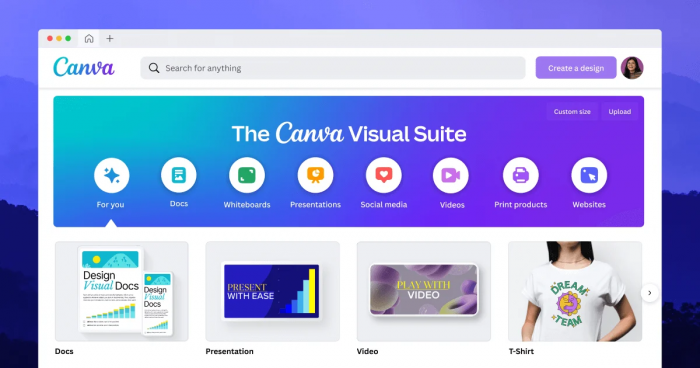
Canva is not mainly a YouTube video generator, but it belongs in a serious creator workflow because thumbnails often decide whether a video gets clicked. Canva helps creators design thumbnails, channel banners, end screens, intros, overlays, simple video assets, and branded templates.
Its biggest advantage is speed. A creator can build a repeatable visual style without learning advanced design software. For channels that publish regularly, Canva can help keep thumbnails and branding consistent across every upload.
| Pros | Cons |
| Excellent for YouTube thumbnails and channel branding | Not built for advanced video editing |
| Large template library for creators | Some premium templates and assets require Pro |
| Easy for non-designers to use | AI design results still need human judgment |
| Useful for banners, intros, overlays, and social posts | Can produce generic-looking designs if templates are overused |
How it helps YouTube creators:
Canva helps creators package their videos better. It is useful for thumbnail design, channel art, branded intro screens, YouTube community posts, end cards, and visual assets that make a channel look more consistent.
Pricing: Canva has a free plan. Canva Pro pricing varies by region, so creators should check the current local price before publishing exact cost details.
Best for: YouTubers who need better thumbnails, consistent branding, banners, and simple design assets.
8. vidIQ: Best for YouTube SEO, Topic Research, and Growth
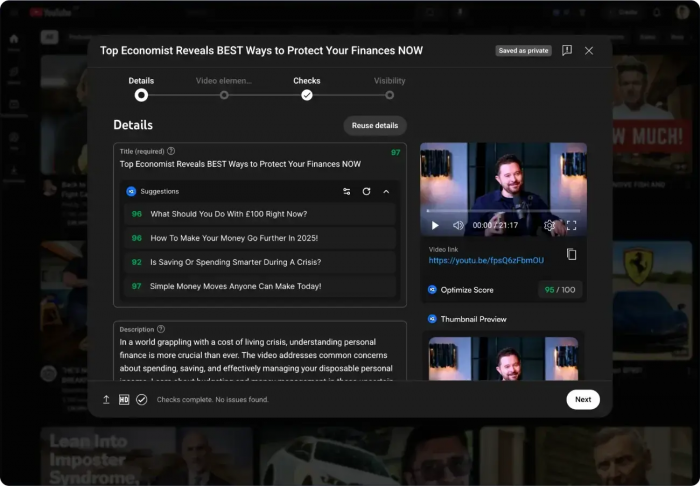
vidIQ is not a video creation tool in the same way as InVideo AI or CapCut, but it is important because YouTube creation starts before editing. A good video needs a searchable topic, a strong title angle, keyword direction, thumbnail ideas, and an understanding of what viewers are already watching.
For creators who publish regularly, vidIQ helps with topic research, keyword ideas, trend discovery, title optimization, and channel growth insights. It does not make the video for you, but it helps creators decide what video is worth making.
| Pros | Cons |
| Useful for topic research and keyword ideas | Does not create or edit videos |
| Helps with titles, trends, and YouTube SEO | Advanced insights are tied to paid plans |
| Good for creators planning content calendars | Data should not replace creative judgment |
| Free plan helps beginners test the tool | Pricing details can change and should be checked live |
How it helps YouTube creators:
vidIQ helps creators choose better topics before production begins. It can support keyword research, video title planning, competitive research, content ideas, and growth tracking, which makes it useful for creators who want a more strategic publishing workflow.
Pricing: vidIQ has a free plan. Paid pricing should be checked on the live pricing page before publishing because visible plan details can change.
Best for: YouTube creators who need help with topic research, keywords, video ideas, titles, and channel growth planning.
Which AI Tool Should You Choose for YouTube Video Creation?
| YouTube Need | Best Tool |
| Turn a prompt into a full video draft | InVideo AI |
| Convert scripts or blogs into faceless videos | Pictory |
| Create AI presenter videos | HeyGen |
| Make professional avatar explainers | Synthesia |
| Edit recorded videos faster | Descript |
| Create YouTube Shorts | CapCut |
| Design thumbnails and channel assets | Canva |
| Research topics, keywords, and titles | vidIQ |
Final Verdict
The best AI tool for YouTube video creation depends on where your workflow is weakest. If you struggle to create the first draft, InVideo AI and Pictory are the strongest options. InVideo AI is better for prompt-based video drafts, while Pictory is better when you already have scripts, blogs, or written material.
For presenter-style videos, HeyGen and Synthesia are better choices. HeyGen feels more creator-friendly for talking-head videos, while Synthesia is stronger for professional training and business explainers. If you already record your own videos, Descript is more useful than a video generator because it speeds up editing, captions, cleanup, and repurposing.
CapCut is the most practical choice for YouTube Shorts because it is fast, simple, and built around short-form editing habits. Canva should be part of almost every YouTube workflow because thumbnails, banners, and visual branding directly affect how a channel looks before someone even watches the video. vidIQ completes the stack by helping creators choose better topics and titles before production starts.
For most creators, the smartest setup is not one tool. A practical YouTube workflow could use vidIQ for research, InVideo AI or Pictory for first drafts, Descript or CapCut for editing, and Canva for thumbnails. That combination covers the full YouTube process from idea to upload.