AI video editing tools have moved far beyond basic trimming and auto captions. Today, they can help creators edit videos through text, remove background noise, generate visuals, resize clips for social media, create subtitles, turn scripts into videos, and speed up post-production without needing a full editing team.
The best tool depends on the type of video you create. A podcast creator may need transcript-based editing. A TikTok creator may need fast vertical templates. A marketing team may need browser-based editing and brand kits. A professional editor may need a full timeline editor with AI support rather than a lightweight online tool.
This guide breaks down the best AI tools for video editing by use case, AI features, pricing, strengths, limitations, and the type of creator each tool suits best.
Quick Comparison Table
| Tool | Best For | Starting Price | Best User |
| Descript | Text-based video editing | $16/month, billed annually | Podcasters, educators, creators |
| Runway | AI video generation and creative edits | $12/month, billed annually | Creative teams, marketers, AI filmmakers |
| CapCut | Short-form social videos | Around $19.99/month | Reels, TikTok, and Shorts creators |
| Adobe Premiere | Professional video editing | $22.99/month, annual plan | Editors, agencies, YouTubers |
| Wondershare Filmora | Beginner-friendly AI editing | $49.99/year | Beginners, students, small creators |
| VEED.io | Online editing and captions | Around $12/month, billed annually | Marketers, educators, teams |
| Pictory | Blog-to-video and script-to-video | $25/month, billed annually | Bloggers, content marketers |
| InVideo AI | Prompt-based video creation | $17/month, billed annually | Small businesses, marketers, creators |
1. Descript: Best for Text-Based Video Editing
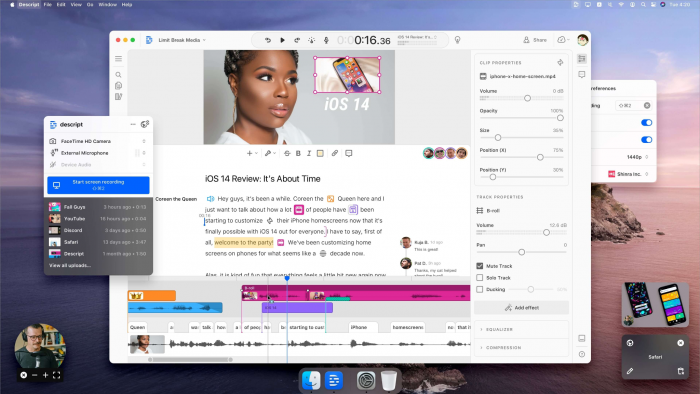
Descript is one of the most useful AI video editing tools for creators who work with podcasts editing, interviews, tutorials, online courses, and talking-head videos. Its main advantage is text-based editing. Once the video is transcribed, users can cut, rearrange, or remove parts of the video by editing the transcript, which makes the process feel closer to editing a document than handling a complex video timeline.
The platform also includes AI features such as filler word removal, automatic captions generation, Studio Sound for improving voice quality, screen recording, and clip creation. This makes it especially useful for creators who want to turn long recordings into polished videos without spending hours inside advanced editing software.
| Area | Details |
| Best for | Podcasts, interviews, YouTube videos, tutorials |
| Key AI feature | Text-based editing and AI audio cleanup |
| Free plan | Available |
| Starting price | $16/month per person, billed annually |
| Best user | Creators, educators, podcasters, marketers |
Descript is useful because it removes many technical barriers from video editing. Beginners can cut video sections through the transcript, while experienced creators can use it to speed up repetitive editing work. Its AI captioning and audio cleanup tools also make it practical for social media videos, where clean sound and readable captions are important.
Practical strengths:
● Makes video editing easier by letting users edit spoken content through text.
● Saves time on podcast and interview editing with filler word removal and transcript-based cuts.
● Helps improve voice quality with AI audio enhancement.
Limitation: Descript is not the best option for advanced cinematic edits, heavy visual effects, or detailed color grading. It works better for content-led videos than highly stylized productions.
Best use case: Use Descript if you create talking-head videos, podcasts, interviews, tutorials, or short clips from long recordings.
2. Runway: Best for AI Video Generation and Creative Editing
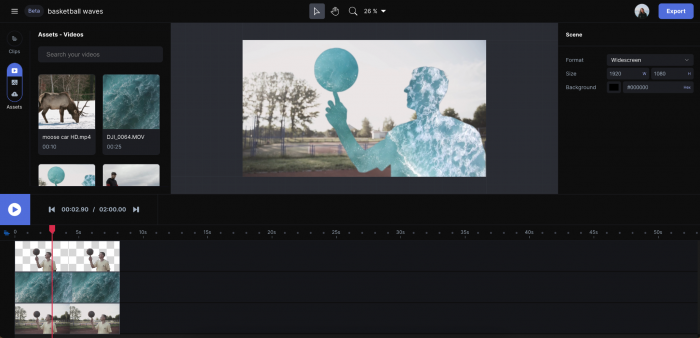
Runway is one of the strongest AI video tools for creators who want more than simple trimming and captions. It focuses on generative video, image-to-video, text-to-video, AI visual effects, background manipulation, and experimental editing. This makes it useful for creators who want to generate new visuals instead of only editing existing footage.
The platform is especially valuable for marketers, creative teams, short-film creators, and visual storytellers. Instead of searching for stock footage or reshooting scenes, users can create AI-generated clips, test visual directions, and build mood-driven video assets. It is not a traditional editor in the same sense as Premiere or Filmora, but it is powerful for visual experimentation.
| Area | Details |
| Best for | AI video generation, visual effects, creative edits |
| Key AI feature | Text-to-video, image-to-video, generative video models |
| Free plan | Available |
| Starting price | $12/month per user, billed annually |
| Best user | Creative teams, marketers, AI filmmakers, visual creators |
Runway is useful because it gives creators a way to produce visuals that may be difficult, expensive, or time-consuming to shoot manually. It can support ad concepts, music visuals, social campaigns, product mood videos, and early-stage storyboarding.
Practical strengths:
● Helps generate video clips from text prompts or image inputs.
● Useful for visual experimentation, concept testing, and creative campaigns.
● Offers advanced AI tools that go beyond normal timeline editing.
Limitation: Runway can become expensive for users who generate many videos because advanced AI generation depends on credits. It is also better for creative visual workflows than traditional long-form editing.
Best use case: Use Runway if you want to generate AI visuals, test creative video ideas, or add experimental effects to your content.
3. CapCut: Best for Short-Form Social Media Videos
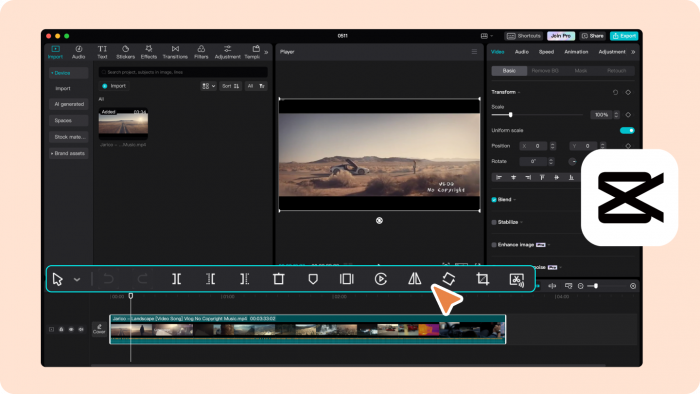
CapCut is one of the best AI video editing tools for creators who make TikTok videos, Instagram Reels creation, YouTube Shorts, and other short-form content. It is built for speed, which is why it has become popular among creators who need to edit and publish videos quickly without learning advanced software.
The platform includes AI features such as auto captions, background removal, templates, effects, text-to-speech, video resizing, and quick social exports. It works well for mobile-first creators, influencers, small brands, and social media managers who need fast, polished videos for daily publishing.
| Area | Details |
| Best for | TikTok, Instagram Reels, YouTube Shorts |
| Key AI feature | Auto captions, background removal, AI effects |
| Free plan | Available |
| Starting price | Around $19.99/month for CapCut Pro |
| Best user | Social media creators, influencers, small brands |
CapCut is useful because it understands the short-form video workflow. Users can add subtitles, transitions, effects, music, stickers, and platform-ready formatting in a very short time. Its templates also help beginners create videos that look modern without building every edit from scratch.
Practical strengths:
● Makes short-form editing fast with templates, effects, and captions.
● Works well across mobile, desktop, and web-based editing workflows.
● Useful for creators who publish frequent vertical videos.
Limitation: CapCut is not the best choice for advanced cinematic work, detailed color grading, or complex long-form projects. Its pricing can also vary depending on region, platform, and device.
Best use case: Use CapCut if you mainly create Reels, TikToks, Shorts, product clips, creator videos, or fast social media edits.
4. Adobe Premiere: Best for Professional AI-Assisted Video Editing
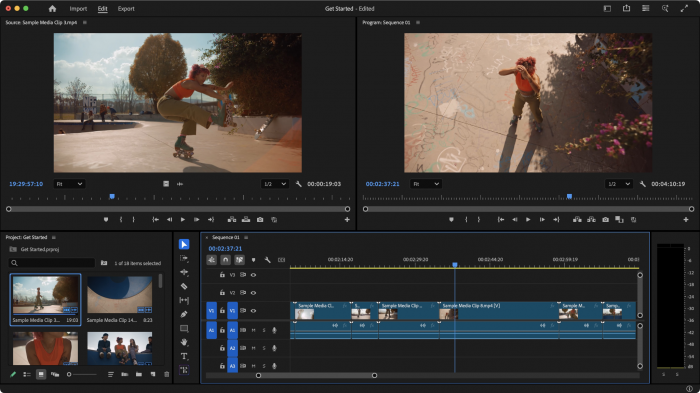
Adobe Premiere is best for users who need a professional video editing system with AI features built into a serious production workflow. It is used by editors, YouTubers, agencies, filmmakers, and content teams that need full control over footage, audio, color, motion graphics, captions, and export settings.
Premiere’s AI features are designed to reduce repetitive editing work rather than replace the editor. Tools such as text-based editing, speech-to-text, auto captions, scene detection, audio enhancement support, and Adobe’s AI-powered creative features can help editors work faster while still keeping manual control.
| Area | Details |
| Best for | Professional video editing, YouTube, branded content |
| Key AI feature | Text-based editing, captions, speech-to-text |
| Free plan | Free trial available |
| Starting price | $22.99/month, annual plan billed monthly |
| Best user | Professional editors, agencies, serious creators |
Adobe Premiere is useful because it can handle projects that lightweight tools cannot. It works well for long timelines, multi-camera edits, detailed audio mixing, advanced color correction, motion graphics workflows, and professional video delivery.
Practical strengths:
● Offers professional editing control with AI features that speed up routine tasks.
● Works well with other Adobe apps such as After Effects, Photoshop, and Audition.
● Suitable for long-form videos, commercials, YouTube content, and client projects.
Limitation: Adobe Premiere has a steeper learning curve than tools like CapCut, Filmora, or VEED.io. It is powerful, but beginners may find it too complex if they only need basic edits and captions.
Best use case: Use Adobe Premiere if you need professional-level editing control and want AI tools inside a full production environment.
5. Wondershare Filmora: Best for Beginner-Friendly AI Video Editing
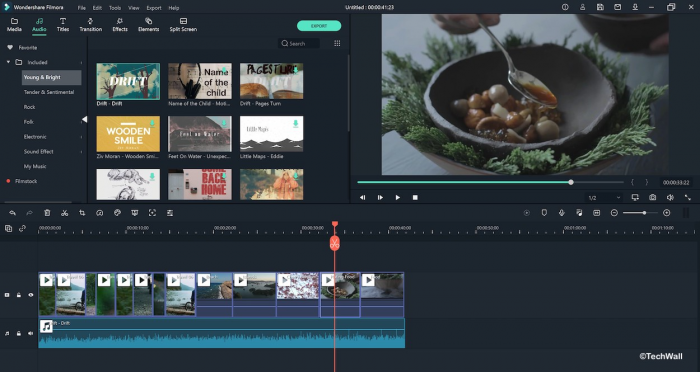
Wondershare Filmora is a strong option for beginners who want AI video editing features without the complexity of professional software. It gives users a traditional editing timeline, but the interface is much easier to understand than tools like Adobe Premiere. This makes it practical for students, YouTubers, coaches, small businesses, and casual creators.
Filmora includes AI tools such as smart cutout, AI audio cleanup, text-to-video support, AI music tools, motion tracking, silence detection, and creative effects. It gives users enough control to create polished videos without requiring advanced editing experience.
| Area | Details |
| Best for | Beginner video editing, YouTube videos, simple business videos |
| Key AI feature | Smart cutout, AI audio tools, AI effects |
| Free plan | Free version/trial available |
| Starting price | $49.99/year for Basic |
| Best user | Beginners, students, YouTubers, small businesses |
Filmora is useful because it balances simplicity with creative control. Users can edit tutorials, product videos, YouTube content, school projects, marketing clips, and social media videos without feeling overwhelmed by professional editing panels.
Practical strengths:
● Easier to learn than professional editing tools.
● Includes useful AI features for audio, effects, cutouts, and editing speed.
● Good for users who want desktop editing without a steep learning curve.
Limitation: Filmora may not be enough for advanced editors who need high-end color grading, complex post-production workflows, or deep customization. Some AI features may also depend on credits or higher plan access.
Best use case: Use Filmora if you want a simple desktop video editor with AI features for YouTube, social media, tutorials, and basic business videos.
6. VEED.io: Best for Online Editing and Auto Captions
VEED.io is a browser-based AI video editor built for users who want to edit videos quickly without downloading heavy software. It is especially useful for captions, subtitles, translations, resizing, screen recordings, social clips, and team-friendly video production.
The platform works well for marketers, educators, founders, course creators, and social media teams. Users can upload a video, generate subtitles, clean audio, resize the video for different platforms, add branding, and export content from the browser.
| Area | Details |
| Best for | Online editing, captions, subtitles, social clips |
| Key AI feature | Auto subtitles, translation, background noise removal |
| Free plan | Available |
| Starting price | Around $12/month, billed annually |
| Best user | Marketers, educators, creators, small teams |
VEED.io is useful because it removes the need for complicated software. It is easy for non-editors to use, which makes it practical for teams that need quick videos for training, marketing, product updates, explainers, and social media publishing.
Practical strengths:
● Makes captioning and subtitle generation fast.
● Works directly in the browser, which is useful for teams and quick edits.
● Good for resizing videos for different social platforms.
Limitation: VEED.io is not ideal for complex editing projects with heavy timelines, advanced visual effects, or professional post-production needs. Browser-based editing can also feel limiting for very large files.
Best use case: Use VEED.io if you need fast online editing, subtitles, translations, branded clips, or social-ready videos.
7. Pictory: Best for Turning Scripts and Blog Posts Into Videos
Pictory is designed for users who want to create videos from written content. It can turn scripts, blog posts, URLs, and text-based material into videos with visuals, captions, voiceovers, and templates. This makes it useful for content marketers, bloggers, educators, and businesses that want to repurpose written content into video.
Unlike traditional video editors, Pictory starts with the message first. A blog post can become a short explainer. A script can become a narrated video. A long article can be converted into a social video or training asset. This makes it valuable for teams that already publish a lot of written content.
| Area | Details |
| Best for | Blog-to-video, script-to-video, content repurposing |
| Key AI feature | Text-to-video, URL-to-video, automatic captions |
| Free plan | Free trial available |
| Starting price | $25/month, billed annually |
| Best user | Bloggers, marketers, educators, content teams |
Pictory is useful because it saves time in the repurposing process. Instead of creating a video from scratch, users can start with existing content and quickly turn it into a video format. This is helpful for brands that want to publish across blogs, YouTube, LinkedIn, and social media.
Practical strengths:
● Turns written content into videos quickly.
● Useful for repurposing blogs, scripts, and educational material.
● Includes captions, stock visuals, templates, and voiceover options.
Limitation: Pictory videos can feel template-based if users do not customize them properly. It is better for fast content repurposing than highly original cinematic editing.
Best use case: Use Pictory if you want to turn blog posts, scripts, articles, or training content into videos without starting from scratch.
8. InVideo AI: Best for Prompt-Based Video Creation
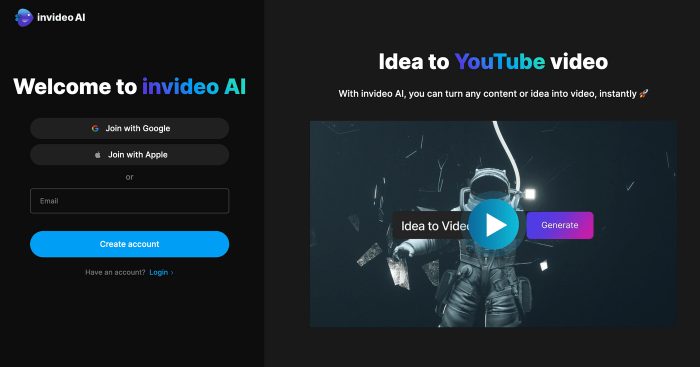
InVideo AI is useful for users who want to create videos from prompts instead of building every scene manually. Users can describe the topic, audience, tone, platform, or purpose, and the tool can help generate a video with script, visuals, voiceover, music, and stock assets.
This makes it practical for small businesses, marketers, creators, agencies, and startup teams that need promotional videos, explainers, ads, social media clips, or product videos. It is especially useful when users have an idea but do not want to spend hours planning the full video structure.
| Area | Details |
| Best for | Prompt-based videos, marketing clips, explainers |
| Key AI feature | Text prompt to video, AI script, stock media matching |
| Free plan | Available |
| Starting price | $17/month, billed annually |
| Best user | Marketers, small businesses, creators, agencies |
InVideo AI is useful because it shortens the distance between idea and first draft. It can help with scripting, scene planning, voiceover, visuals, and editing structure. For users who produce marketing videos regularly, this can save time during the early production stage.
Practical strengths:
● Helps create videos from simple text prompts.
● Useful for ads, explainers, product videos, and social media content.
● Reduces the time spent on scripting, footage selection, and first-draft creation.
Limitation: Prompt-generated videos still need human review. Users should check the script, visuals, pacing, voiceover, and brand accuracy before publishing.
Best use case: Use InVideo AI if you want to create marketing videos, explainers, product clips, or social videos from text prompts.
Which AI Video Editing Tool Should You Choose?
| Need | Best Tool |
| Edit podcasts, interviews, and talking-head videos | Descript |
| Generate AI visuals and creative video scenes | Runway |
| Make TikTok, Reels, and Shorts quickly | CapCut |
| Edit professional videos with full control | Adobe Premiere |
| Use a beginner-friendly desktop video editor | Filmora |
| Add captions and edit videos online | VEED.io |
| Convert blog posts and scripts into videos | Pictory |
| Create videos from prompts | InVideo AI |
Final Verdict
The best AI video editing tool depends on where your editing process slows down.
If the hardest part is cutting spoken content, Descript is the strongest choice. If you need AI-generated visuals or experimental video effects, Runway is more suitable. If you mainly create short-form content for TikTok, Instagram Reels, or YouTube Shorts, CapCut is the fastest and most practical option. If you need professional control for serious production work, Adobe Premiere remains the best long-term choice.
Filmora is better for beginners who want a simple desktop editor with AI tools. VEED.io is best for online editing, captions, and team-friendly social videos. Pictory is ideal for turning written content into videos, while InVideo AI works well for prompt-based marketing videos and explainers.
For most creators, the smartest approach is not to choose the most advanced tool. Choose the tool that matches your main content type. Use Descript for voice-led videos, CapCut for short-form clips, Premiere for professional edits, Runway for AI visuals, Filmora for beginner desktop editing, VEED.io for captions, Pictory for content repurposing, and InVideo AI for prompt-based video creation.